How to make video look cinematic
Footage looks cinematic because of a handful of choices you make before and after you press record.
Here's what each one does, and how to make it on a camera or an iPhone.
Shoot at 24 or 25 frames per second
Films run at 24 frames per second. Higher frame rates, such as 60, make movement look smooth and sharp, and that reads as video or live TV.
Set 24 fps, or 25 fps in the UK and Europe, where it matches the mains power and stops lights flickering on camera. Keep 50 and 60 fps for clips you want to slow down.
Set your shutter to 1/50
Each frame of a film carries a little motion blur, and that blur makes movement look natural. The usual rule is a shutter speed of about twice your frame rate, so 1/50 of a second at 24 or 25 fps.
A faster shutter freezes each frame, and movement looks choppy. In bright sun, cut the light with an ND filter instead of raising the shutter speed.
The iPhone's own camera app sets the shutter for you. An app such as Blackmagic Camera lets you set it yourself.
Light your subject from the side
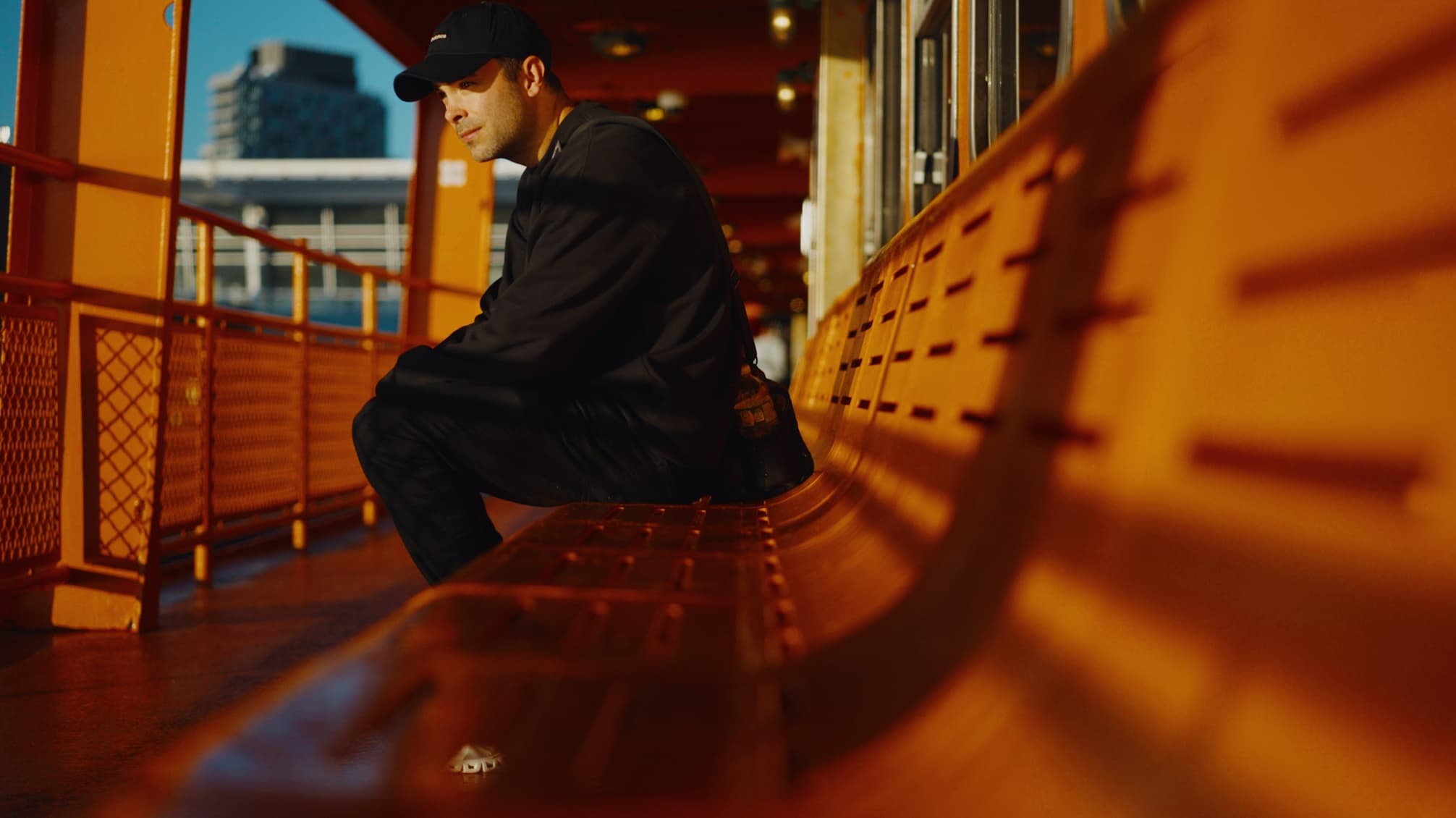
Light changes footage more than any camera setting. Soft light from the side, from a window or a low sun, gives faces shape. Flat light from the front, or hard sun from overhead at midday, takes it away.
The hour after sunrise and the hour before sunset give warm, low light. Indoors, turn people towards a window and leave the ceiling light off.
Shoot in log and expose it well
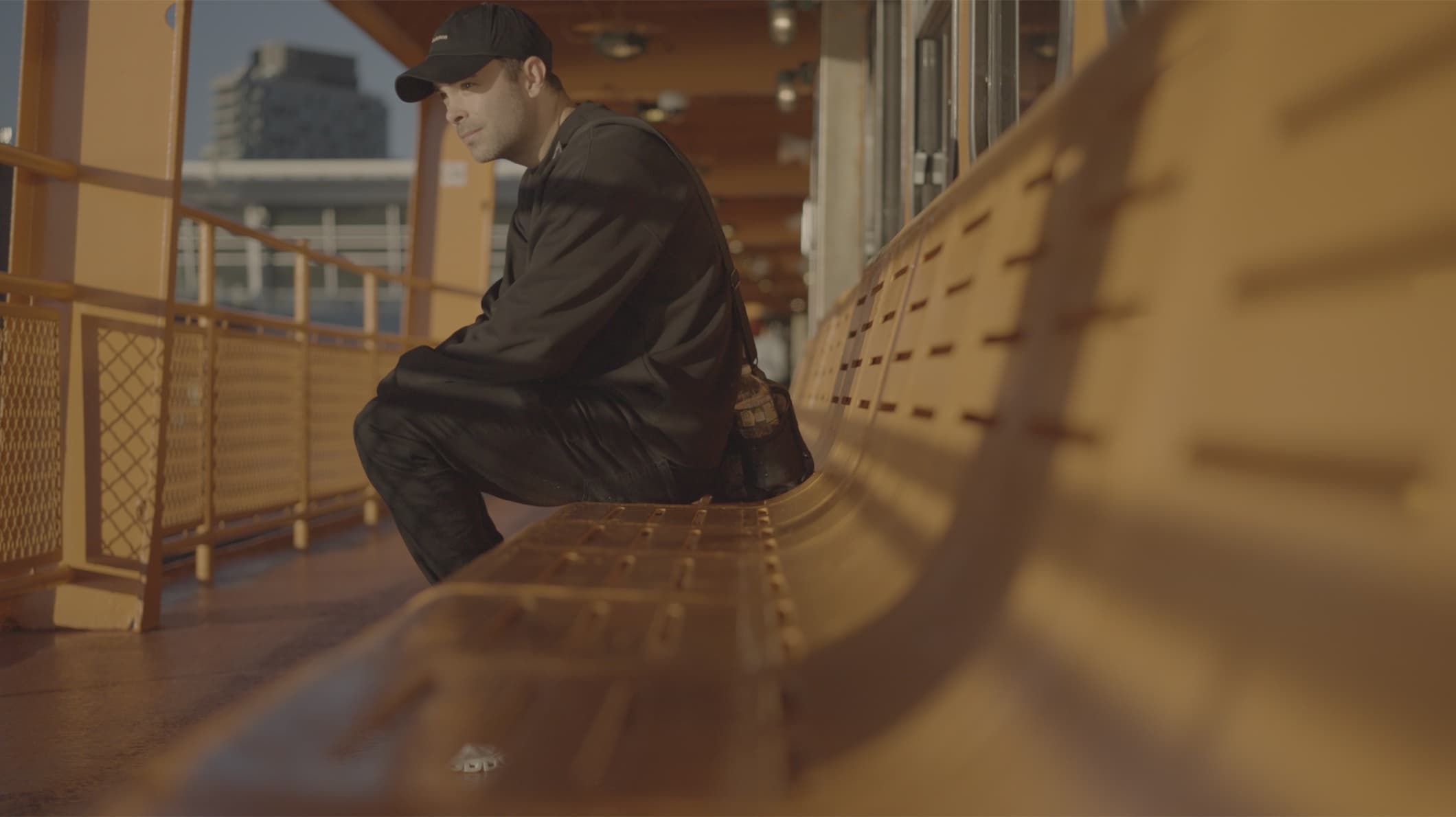
Many cameras, and the Pro iPhones, can record in log. Log looks flat and grey, but it keeps more detail in bright skies and dark shadows, and that detail gives you room to grade.
Dark log footage turns noisy when you brighten it. Give it enough light, and keep the brightest parts of the frame from turning pure white.
Move the camera slowly, or not at all
Footage that wanders and shakes looks like a quick phone clip. Hold each shot still for a few seconds, or move slowly in one direction, and let the people in the frame do the moving.
Blur the background
A wide aperture, such as f/2.8 or wider, keeps your subject sharp and softens what's behind them. Moving closer to your subject, and further from the background, softens it more.
Grade the colour
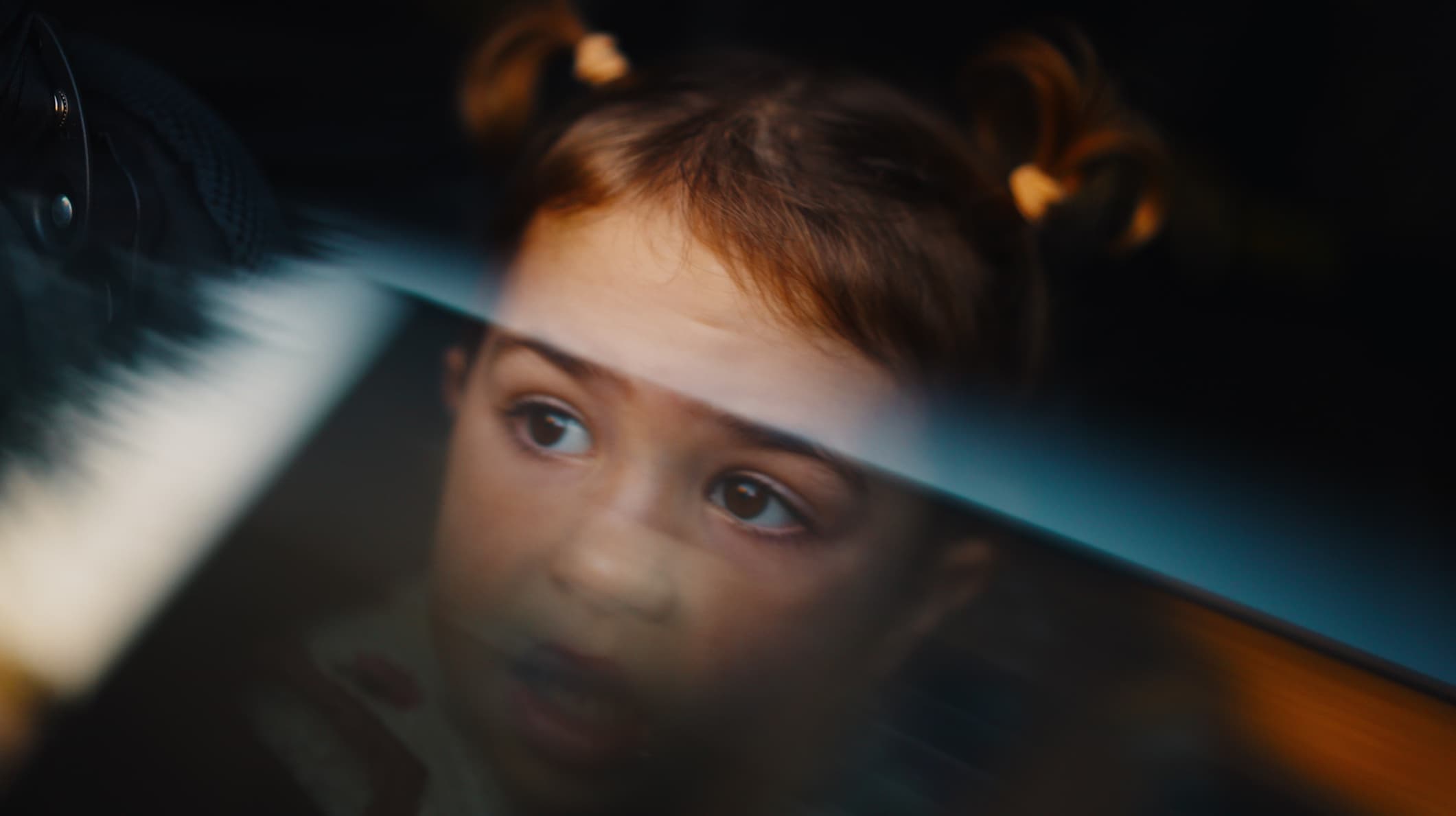
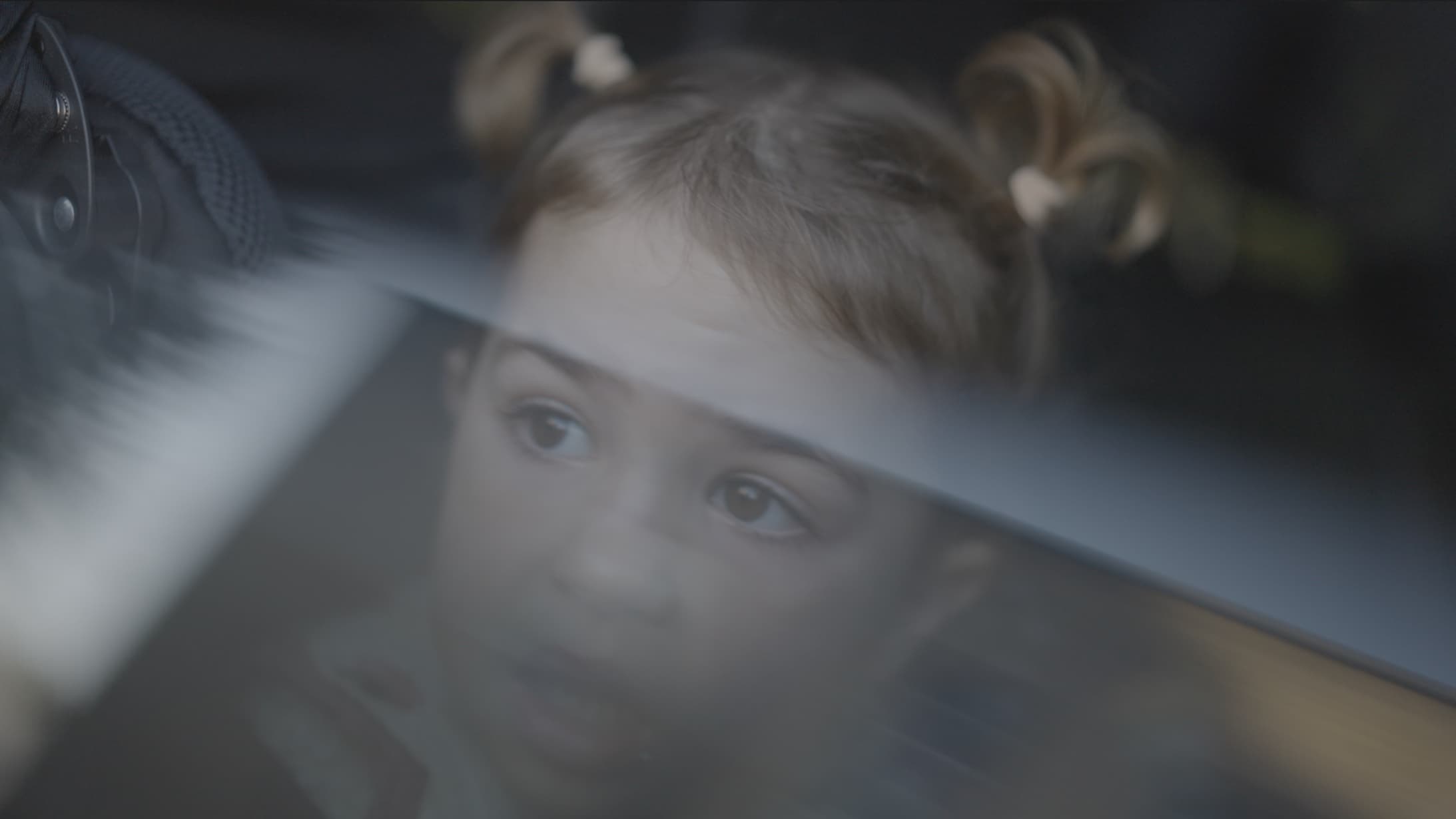
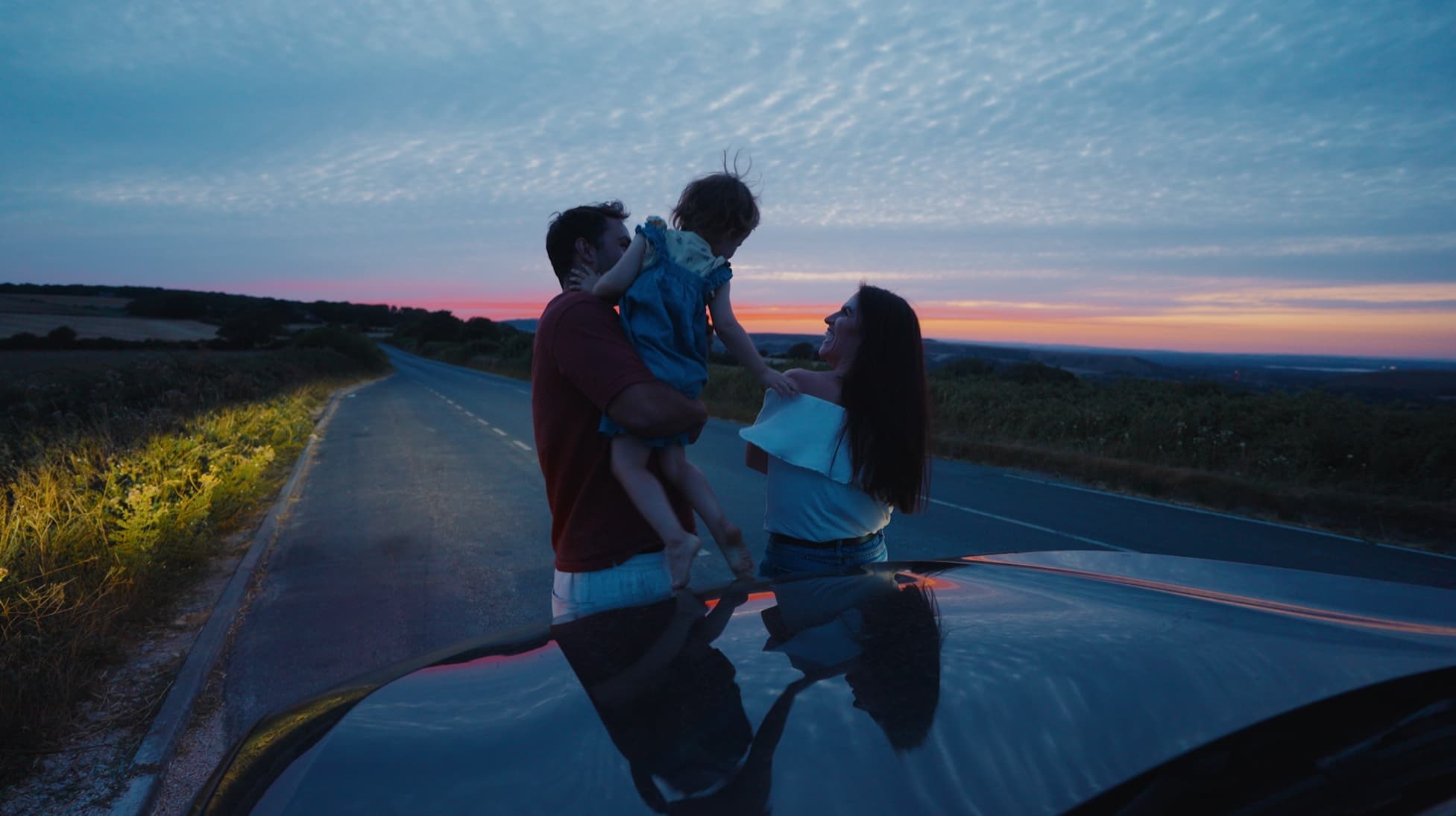
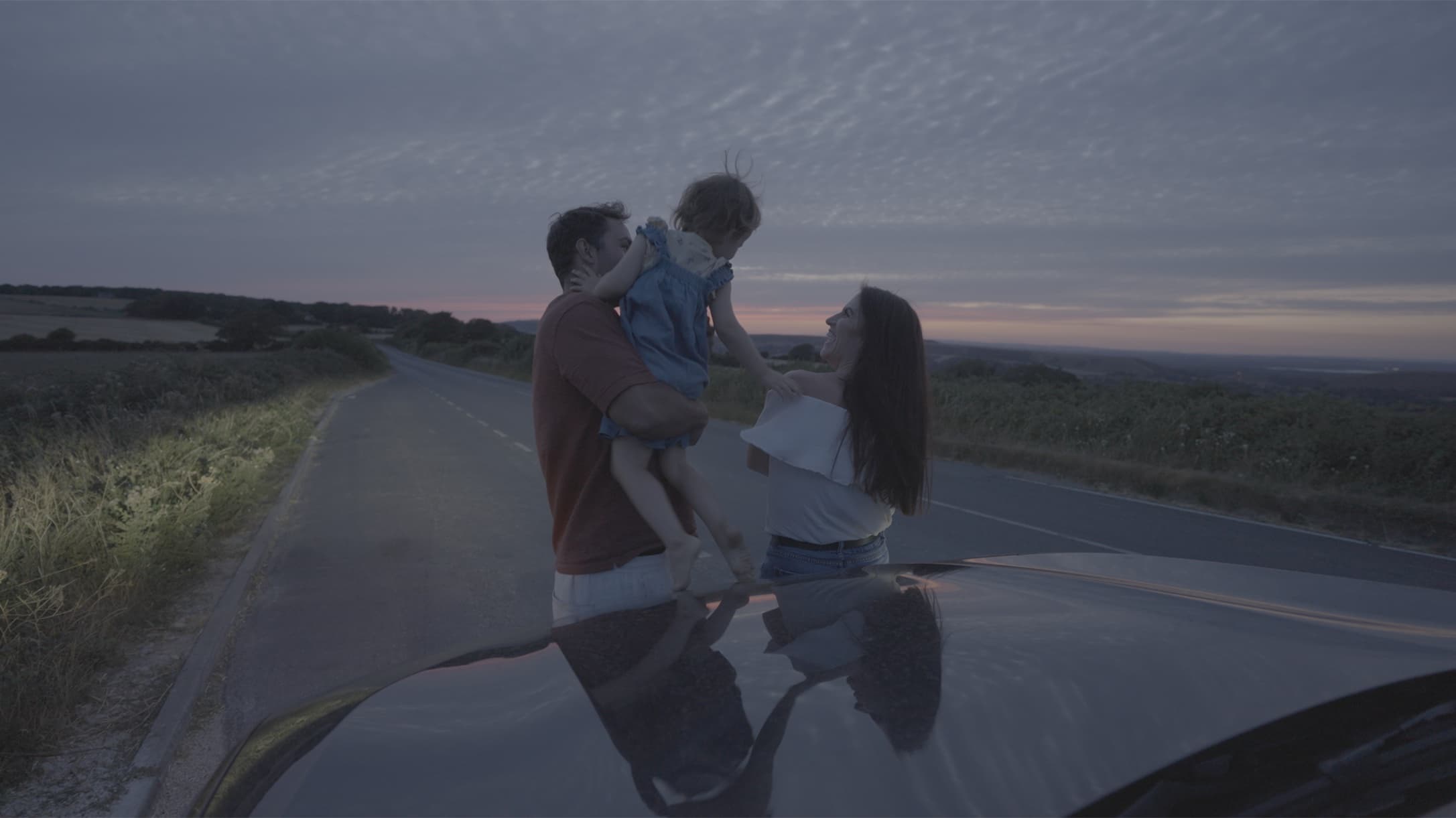
Colour is what most people notice first. A grade sets the contrast, the palette and the mood, and makes every clip in a film match.
Log footage needs converting before it looks right, and a LUT does that in one step. My LUTs convert your log footage and give it the warm, nostalgic colour of my family films. Then adjust exposure and white balance to suit each clip.
Find your look with Playback LUTs
The short version
- Set 24 fps, or 25 fps in the UK and Europe.
- Set the shutter to 1/50, and use an ND filter in bright sun.
- Record in your camera's log profile, or Apple Log on a Pro iPhone.
- Put your subject in soft light from the side.
- Hold the shot still, or move slowly.
- Apply the LUT for your log profile, then adjust exposure and white balance. The supported profiles are under Guides by camera below.